
MinerAccess Instructor Portal
The Instructor Portal is a central location for instructors to view student accommodations for their courses and to coordinate with the Testing Center.
Through the portal, instructors can
- •View accommodations for students who have requested their faculty notification letters (instructors will also receive a faculty notification letter email)
- •Complete the Accommodated Testing Proctor Instruction Form and copy the form to other sections they teach
- •Provide exam dates and coordinate with the Testing Center
- •Track student exams requests
- •Upload exams
- •Add additional instructors to a course
•Open the Instructor Portal.
•The portal will open to the access policy and a FERPA confidentiality reminder.
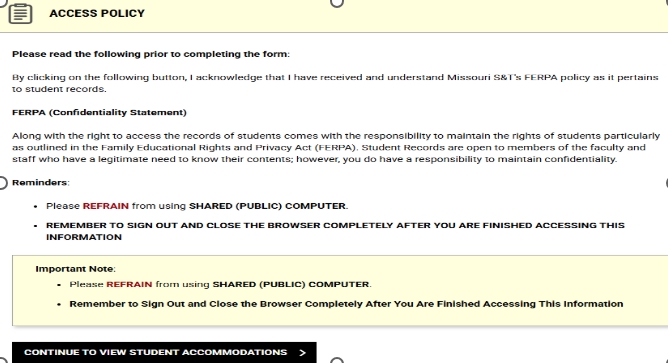
•Click the “Continue to View Student Accommodations” button to proceed to the portal.
•The overview page lists the students in your course(s) who have requested accommodation letters.
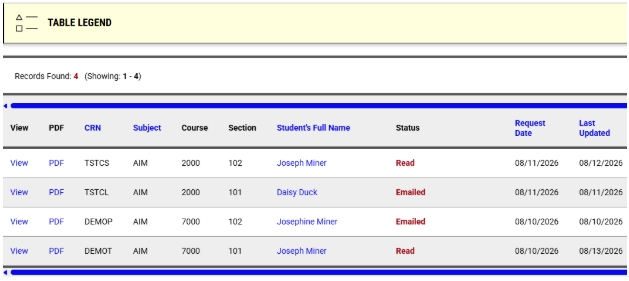
•To view a copy of a student’s letter, click the “View” button. The PDF button can be used to download a PDF of the student’s faculty notification letter.
•The Instructor Portal uses a feed from Joe’SS to populate course instructors.
•However, if you require accommodation information to be shared with another instructor not on record for the course, you may do so by submitting a request using the “Add Instructor” option.
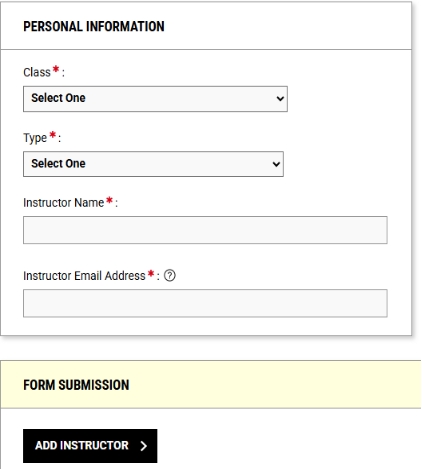
•The “Add Instructor” link is in the left Home menu on the Overview page.
•The Accommodated Testing Instruction form provides the Testing Center with the information needed to administer course exams. The Testing Center cannot approve student exam requests for a course until this form is completed.
•The “Accommodated Testing Instruction Form” link at the top right of the Alternative Testing page will open a table that lists an instructor’s courses.
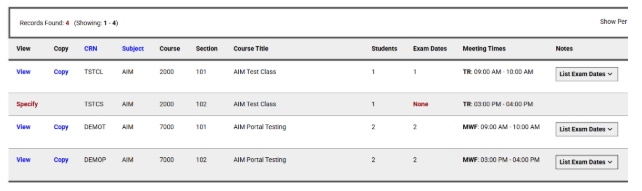
•Click “View” to see completed Accommodated Testing Instruction forms and “Specify” to complete the form for a class.
•Exam dates can be added to completed forms by selecting “View” and clicking “List Exam Dates”. The Testing Center uses provided exam dates to approve student exam requests. Providing exam dates as far in advance as possible helps the Testing Center to efficiently approve requests.
•Exams can provided to the Testing Center by uploading them into the Instructor Portal. (Exams can also be emailed to testctr@mst.edu or dropped off at the Testing Center.)
•In Alternative Testing, select “Exam Dates” from the top menu.
•A table listing all exam dates the instructor has provided will open. The “Refine Search” button can be used to select a specific class or section.
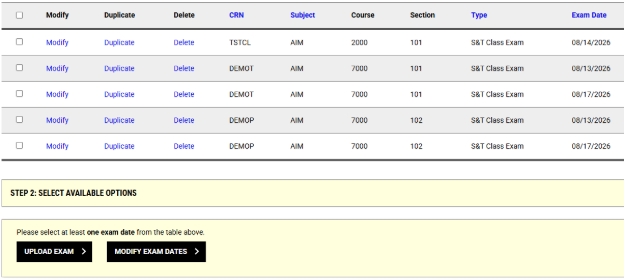
•To upload an exam to an exam date, select the date and click the “Upload Exam” button.
•Enter the title or an exam file note and select a file and upload the file.
•The exam will be uploaded to an exam date not a particular student.